
Load more row option in Oracle APEX 18.2 Interactive Grid (IG)

Objective:

To bring partial data refresh concept to improve the query (data retrieval) performance in Interactive Grid.

Solution:

Step 1: Create Interactive Grid Report.

Step 2: Do the below attributes setting.

Pagination:

Type => Scroll
Show Total Row Count => NO

Heading:

Fixed To => Region
Fixed Report Height => {as per your requirement}


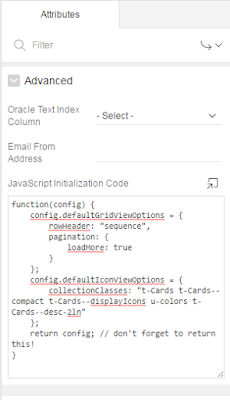
Step 3: Add the below JS in the JS section of the IG attributes.

function(config) {
    config.defaultGridViewOptions = {
        rowHeader: "sequence",
        pagination: {
            loadMore: true
        }
    };
    config.defaultIconViewOptions = {
        collectionClasses: "t-Cards t-Cards--compact t-Cards--displayIcons u-colors t-Cards--desc-2ln"
    };
    return config; // don't forget to return this!
}


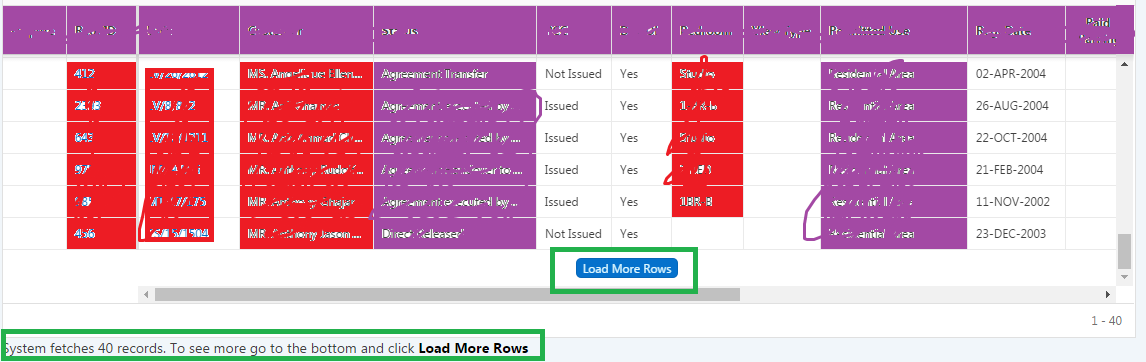
Step 4: Add the below HTML in the footer section of the IG region. (To indicate user)

<span style="color:block;font-weight:normal">System fetches 40 records. To see more go to the bottom and click </span><span style="color:black;font-weight:bold"> Load More Rows </span>


Step 5: Add the below CSS in the inline section of the page header.


.a-GV-loadMoreButton
{
    border-radius: 5px;
    color:#DFF8FF;
    background:      #0571CC;
    cursor: pointer;

}


Output:
Related Posts:


Comments

Popular posts from this blog

Friendly URL: Redirect to Different Page after Login in Oracle APEX 20.1

Oracle has updated apex.oracle.com to APEX 20.1 which includes among other features the new Friendly URL option. Here i am giving an example to redirect to different page after login in Oracle APEX 20.1 [Friendly URL Enabled] Step 1: Define home page for each user in emp master table as below Step 2: To enable Friendly URL Syntax, follow below steps, 1) On the Workspace home page, click the App Builder icon. 2) Select an application (The Application home page appears). 3) From Application home page, you can access the Definition page in TWO ways: Click the Edit Application Properties button. From Shared Components:              1) Click Shared Components .              2) Under Application Logic, click Application Definition Attributes . The Definition page appears. 4) Under Properties, configure the Friendly URL s attribute: Click Apply Changes to save your ch...

Printing Page Numbers in RTF Template [Oracle BI Publisher]

Here I am giving an example to print the page numbers dynamically in the RTF (Rich Text Format) template. Step 1:  Go to page footer and copy and paste the below script. Page |  <?fo:page-number?>  of  <?fo:page-number-citation:xdofo:lastpage-joinseq?> <fo:page-number> :   This is the object, which is used to represent the current page-number. <?fo:page-number-citation:xdofo:lastpage-joinseq?> :  This is the syntax, which is used to represent the total number of pages. Step 2:  Load the XML and preview the result. Output: That's it. References: fo:page-number Printing Page Number Code in Oracle XMLP RTF Template

Generating the report with APEX_DATA_EXPORT

With the APEX_DATA_EXPORT package, you are able to export data from Oracle Application Express in the following file types: PDF, XLSX, HTML, CSV, XML, and JSON. Step 1: Create a table and populate it with some sample records. CREATE TABLE emp   (     empno        NUMBER,     first_name   VARCHAR2(240),     last_name    VARCHAR2(240),     mgr          NUMBER,     deptno       NUMBER,     sal          NUMBER,     created_date TIMESTAMP (6),     comm         NUMBER,     hiredate     DATE,     JOB          VARCHAR2(240),     ename        VARCHAR2(240),     PRIMARY KEY (empno) USING INDEX ENABLE   ); /    INSERT INTO emp (empno, first_name, last_name, mgr,...